⚡ TL;DR — Key Takeaways
- The security problem: Ollama’s default network binding listens on all interfaces, meaning one open port can expose your entire local AI stack to anonymous internet traffic.
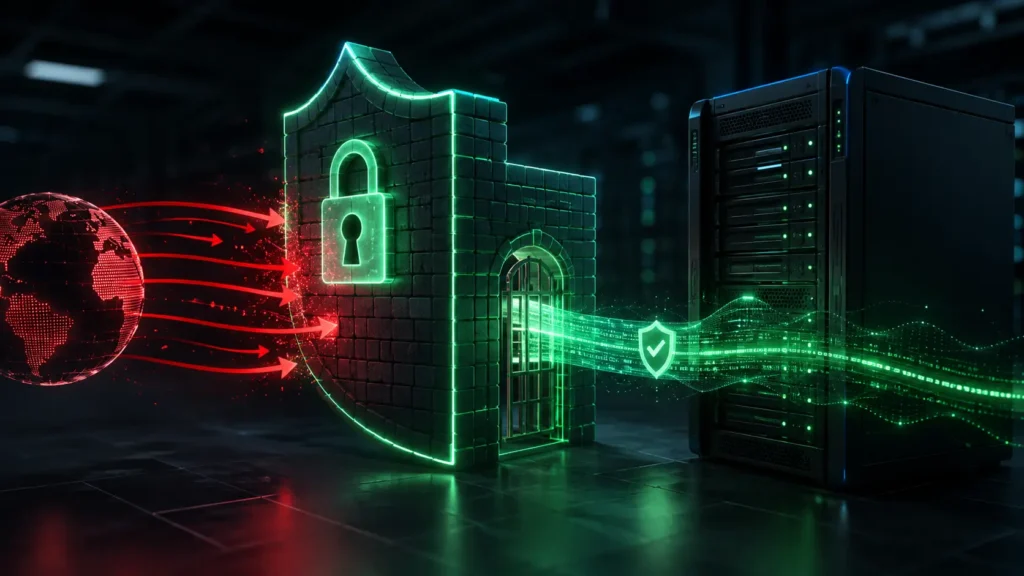
- The proxy solution: Placing Ollama behind a secure reverse proxy hides the raw model API behind an encrypted, authenticated gateway that filters every incoming request.
- The authentication layer: Nginx validates a secret header token before forwarding any traffic, so unauthenticated requests never reach the Ollama process at all.
- The firewall impact: Binding Ollama to localhost and blocking port 11434 externally removes the direct attack surface entirely, leaving only the hardened proxy reachable.
Table of Contents
Global threat intelligence data shows automated bot scanners locate open port configurations, including exposed Ollama instances on port 11434, in as little as 15 minutes after they go live. Mass scanning tools like Shodan, Censys, and Masscan run continuous internet-wide sweeps, and an unprotected port doesn’t stay hidden by luck.
Exposing a raw Ollama port to the open internet hands anonymous users direct access to your GPU or CPU compute, your loaded models, and potentially any data those models process. There’s no authentication layer by default, so anyone who finds the port can query it as if they were you. This is precisely the gap that running Ollama behind a secure reverse proxy is built to close.
A reverse proxy acts as a hardened security wall between your server and the internet. It terminates encrypted connections, checks credentials before forwarding anything, and keeps the actual Ollama process unreachable except through that single, controlled gateway.
Recently, I ran a routine port scan on my own home router, and the results were shocking. I found that my internal testing configurations were visible to the outside world. The default setups were exposed, which means anyone scanning your public IP address can hijack your graphics card’s raw processing power for free. When I saw those active background connections in my system logs, I realised that a basic home firewall wasn’t enough and that I needed an encrypted proxy wall. That’s when I started to research a solution for this.
The rest of this guide covers three concrete steps: locking Ollama’s network binding to localhost, standing up Nginx as an authenticated gateway, and layering in free, automated TLS with Certbot.
Step 1: Modifying Ollama Host Bindings
Ollama can default to listening on 0.0.0.0, which accepts connections on every network interface on the machine, public or private. Restricting this to localhost is the first and most important lockdown step.
Set the host binding through the OLLAMA_HOST environment variable:
Bash
export OLLAMA_HOST=127.0.0.1:11434
For a persistent setup under systemd, edit the service configuration directly:
Bash
sudo systemctl edit ollama.service
Insert this override block:
Ini
[Service]
Environment="OLLAMA_HOST=127.0.0.1:11434"
Apply the change:
Bash
sudo systemctl daemon-reload
sudo systemctl restart ollama
Confirm the binding is correct before moving on:
Bash
ss -tulpn | grep 11434
You should only see 127.0.0.1:11434 in the output. If you see 0.0.0.0 or a public IP address instead, the environment variable didn’t take effect and needs troubleshooting before proceeding.
Step 2: Configuring Nginx as the Reverse Proxy
This step is the backbone of running Ollama behind a secure reverse proxy, since Nginx becomes the only component the outside world ever talks to. It handles TLS, checks a token, and only then forwards clean traffic to Ollama.
Install Nginx:
Bash
sudo apt update && sudo apt install nginx -y
Create the server block file:
Bash
sudo nano /etc/nginx/sites-available/ollama-proxy
Use the following configuration as your template:
nginx

server {
    listen 443 ssl;
    server_name your-domain.com;

    ssl_certificate     /etc/letsencrypt/live/your-domain.com/fullchain.pem;
    ssl_certificate_key /etc/letsencrypt/live/your-domain.com/privkey.pem;

    location / {
        if ($http_x_api_key != "your-long-random-token-here") {
            return 401;
        }

        proxy_pass http://127.0.0.1:11434;
        proxy_set_header Host $host;
        proxy_set_header X-Real-IP $remote_addr;
        proxy_read_timeout 300s;
    }
}

server {
    listen 80;
    server_name your-domain.com;
    return 301 https://$host$request_uri;
}
The X-API-Key check rejects any request with a missing or incorrect token with a 401, before Nginx ever proxies it to Ollama.
While selecting a token string, do not make the mistake of using a simple phrase or short password. Automated attacker scripts continuously spray standard wordlists and dictionary combinations at exposed web endpoints, trying to guess authentication codes. I highly recommend that you generate a random string token of at least 32 characters using a secure generator like RandomKeygen, IT Tools Token Generator, Jam’s random string generator, or a terminal tool like openssl, urandom or uuidgen.
Enable the site and verify the syntax:
Bash

sudo ln -s /etc/nginx/sites-available/ollama-proxy /etc/nginx/sites-enabled/
sudo nginx -t
sudo systemctl reload nginx
Step 3: Setting Up Free SSL via Certbot
A token check is worthless if it travels over plaintext HTTP, where it can be intercepted. Certbot automates free Let’s Encrypt certificates in just a couple of commands.
Install Certbot along with its Nginx plugin:
Bash

sudo apt install certbot python3-certbot-nginx -y
Issue and install the certificate for your domain:
Bash

sudo certbot --nginx -d your-domain.com
Certbot automatically updates your Nginx config with the correct certificate paths and reloads the service. Confirm auto-renewal works, since these certificates expire every 90 days:
Bash

sudo certbot renew --dry-run
Finish by blocking the raw Ollama port at the firewall level, so it’s unreachable even if the proxy config is ever misconfigured:
Bash

sudo ufw deny 11434
Conclusion
Setting up Ollama behind a secure reverse proxy turns an exposed, unauthenticated model server into a properly gated service: encrypted in transit, authenticated at the edge, and completely unreachable on its raw port. Each of the three steps here closes a specific gap scanners and automated attacks rely on.
This reflects a broader zero-trust principle for self-hosted AI: never assume a port is safe just because it’s “only” on your home or private server. Encrypt every connection, authenticate every request, and keep your core services reachable only through a controlled gateway.
Finally, what kind of base environment are you using to host your local AI models? Are you running Ollama directly on a bare-metal Ubuntu machine, setting it up inside an Unraid template, or managing it via TrueNAS apps and custom Docker networks? Drop a comment below and let me know your home server OS choice, or feel free to share any network routing issues you ran into while setting up your Nginx configurations!
Related: How to Stop Windows 11 Recall From Recording Your Private Data – Learn how to disable Windows 11 Recall and protect your privacy by preventing Microsoft’s AI from continuously capturing snapshots of your on-screen activity.
How to Prevent Prompt Injection in LangChain Python Applications – A practical, layered guide to help LangChain developers prevent prompt injection through structural prompt separation, input sanitization, and LLM-based guardrails.
The Ultimate Checklist for Securing Open-Source LLM Locally – This guide provides an essential cybersecurity checklist for securing self-hosted AI models to keep your local hardware and data safe from external hackers
How to Block Claude AI and OpenAI Bots From WordPress: A Step-by-Step Guide – Learn how to block OpenAI and Claude AI bots from crawling your website while maintaining control over your content and AI visibility.
Frequently Asked Questions (FAQ)
Q1. Does running Ollama behind a secure reverse proxy affect model response speed or streaming performance?
Nginx adds minimal overhead, typically single-digit milliseconds, since it’s just passing bytes through after the initial auth check. Streaming responses work fine through proxy_pass as long as you avoid buffering settings that hold back chunks, so real-time token streaming isn’t noticeably affected.
Q2. Can I use this same reverse proxy setup to expose Ollama to multiple devices on my own home network, not just the public internet?
Yes, you can bind Nginx to your local network interface instead of a public domain and use a self-signed or internal CA certificate rather than Let’s Encrypt, which requires a publicly resolvable domain. This lets devices like a phone or laptop on the same LAN reach Ollama securely without exposing anything to the wider internet.
Q3. What happens if my Let’s Encrypt certificate fails to renew automatically?
If the Certbot renewal cron job or systemd timer fails silently, your certificate can expire, causing browsers and API clients to reject the connection with a TLS error. It’s worth setting up a simple monitoring check or expiry alert separately from certbot renew --dry-run, since that command only tests the renewal process rather than confirming ongoing success over time.
Q4. Should I rotate the API token used in the Nginx header check, and how often?
Yes, treat it like any other credential and rotate it periodically, especially if it’s ever been shared, logged, or used in a script that might get committed to a repository. Since the token lives in plain text in your Nginx config, rotating it also means updating every client or script that sends the X-API-Key header.
Q5. Is this Nginx-based setup enough for a production environment with many users, or do I need something more robust?
For personal or small-team use, this setup is solid, but production environments with many users typically add rate limiting, a proper API gateway with per-user keys, and centralized logging or a Web Application Firewall (WAF) on top. Treat this guide as the essential security baseline, not the final architecture, if you’re scaling beyond a handful of trusted users.
DISCLAIMER
Educational Notice:This article is published on AI Security Watch strictly for technical educational and general cybersecurity awareness purposes. The configurations and research discussed are based on public threat intelligence data. This content does not constitute professional IT architecture, legal, or financial advice. Because network configurations vary, always verify settings in an isolated test environment or consult with a qualified engineer before modifying live hardware or registries. AI Security Watch contains informational links to external resources; we are not responsible for third-party site accuracy or platform content.