
⚡ TL;DR — Key Takeaways
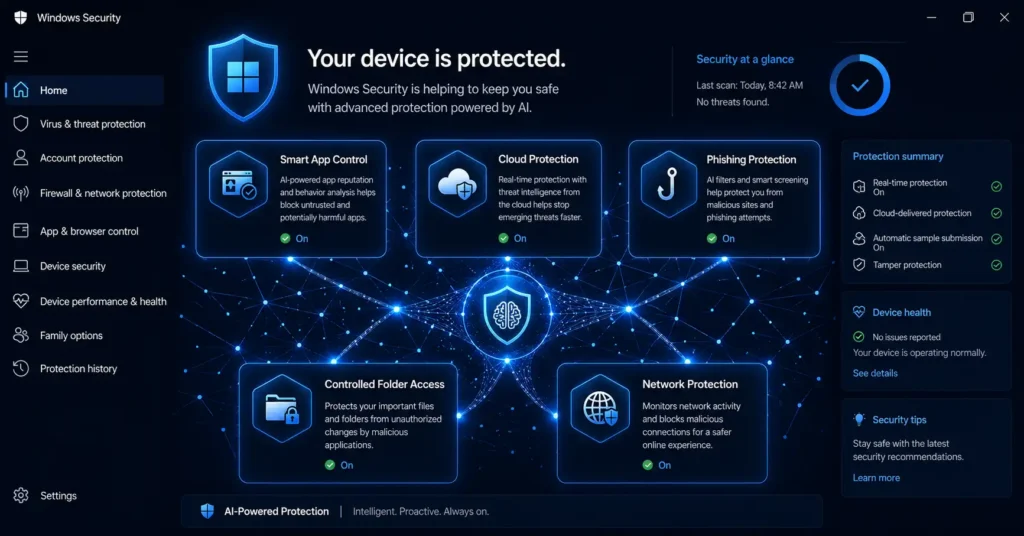
- Microsoft Defender AI features in 2026 go far beyond basic antivirus — but several of the most important ones are switched off by default and most users never turn them on.
- Smart App Control uses AI and cloud intelligence to vet every application before it runs — blocking malicious and untrusted software before execution. Available on Windows 11 only.
- Cloud-delivered protection updates threat definitions within minutes of new malware discovery — far faster than traditional signature updates.
- Enhanced Phishing Protection warns you when you type your Windows password into a suspicious site or app — even across non-Microsoft browsers.
- Controlled Folder Access blocks ransomware from encrypting your Documents, Pictures, and Desktop folders — but it is turned off by default.• Microsoft Defender scored 6/6 in AV-Test’s 2026 protection benchmarks — matching the best paid antivirus tools.
Table of Contents
Is Microsoft Defender good enough in 2026, or do you still need paid antivirus? For most Windows users, the answer is yes — Defender is enough. But only if you know how to use it. Most people leave the majority of its Microsoft Defender AI features switched off. The real-time malware scanner runs by default, but the AI-powered tools that protect against phishing, ransomware, and untrusted applications — the features that actually make Defender competitive with paid tools — require manual activation.
According to Windows Latest’s April 2026 analysis, Microsoft now officially states that Windows 11 includes a complete antivirus stack sufficient for most users — a position that would have been controversial five years ago. What changed is the addition of AI-powered cloud intelligence, behavioural analysis, and threat detection layers that have turned Defender from a basic scanner into a genuinely capable security platform.
This article covers the five Microsoft Defender AI features most users have never activated, how each one works, how to turn them on, and an honest comparison with paid tools. For broader context on how AI is reshaping endpoint security, read our guide on AI ransomware detection and how it stops attacks before encryption.
6/6 Microsoft Defender scored a perfect 6/6 in AV-Test’s 2026 protection, usability, and performance benchmarks — matching the best paid antivirus products. Source: Windows Latest — April 2026
What Most Users Don’t Know About Their Microsoft Defender AI Features
Most people think of Microsoft Defender AI features as a simple background scanner that checks files for known viruses. That description was accurate in 2018. In 2026, Defender is a multi-layered security platform that uses machine learning, cloud-based threat intelligence, behavioural analysis, and AI-driven reputation checking — the same core techniques used by the best paid antivirus products.
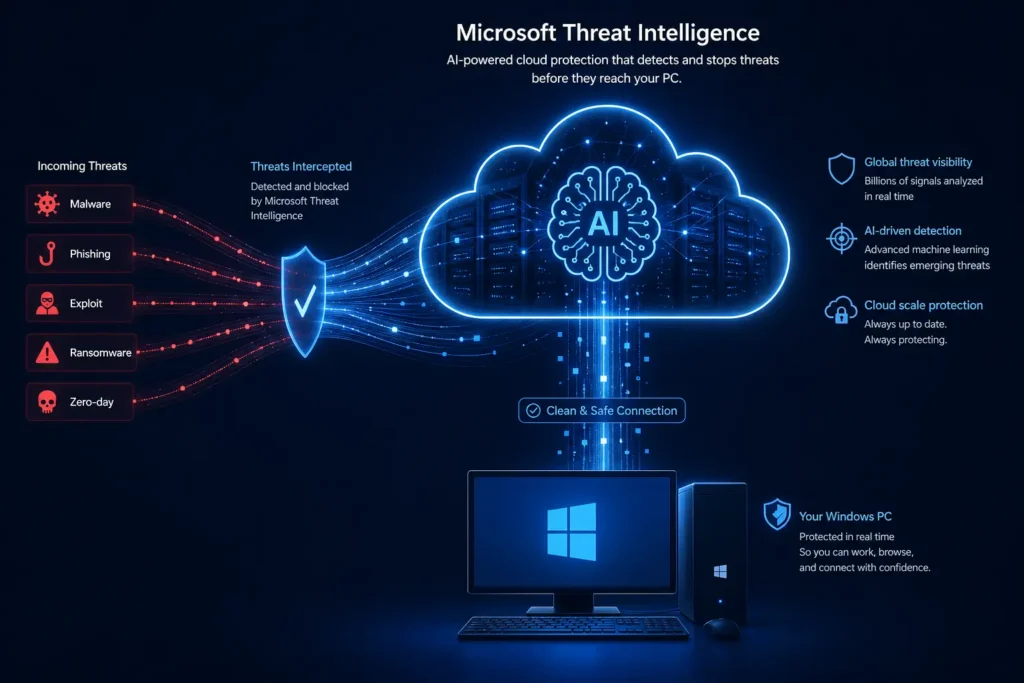
The gap is not capability — it is configuration. According to Windows News AI’s 2026 security analysis, Defender’s 2026 implementation includes cloud-delivered protection that updates threat definitions within minutes of new malware discovery — far faster than the traditional signature update cycle. Its behavioural monitoring analyses program execution patterns to detect zero-day threats before they establish persistence on your system.
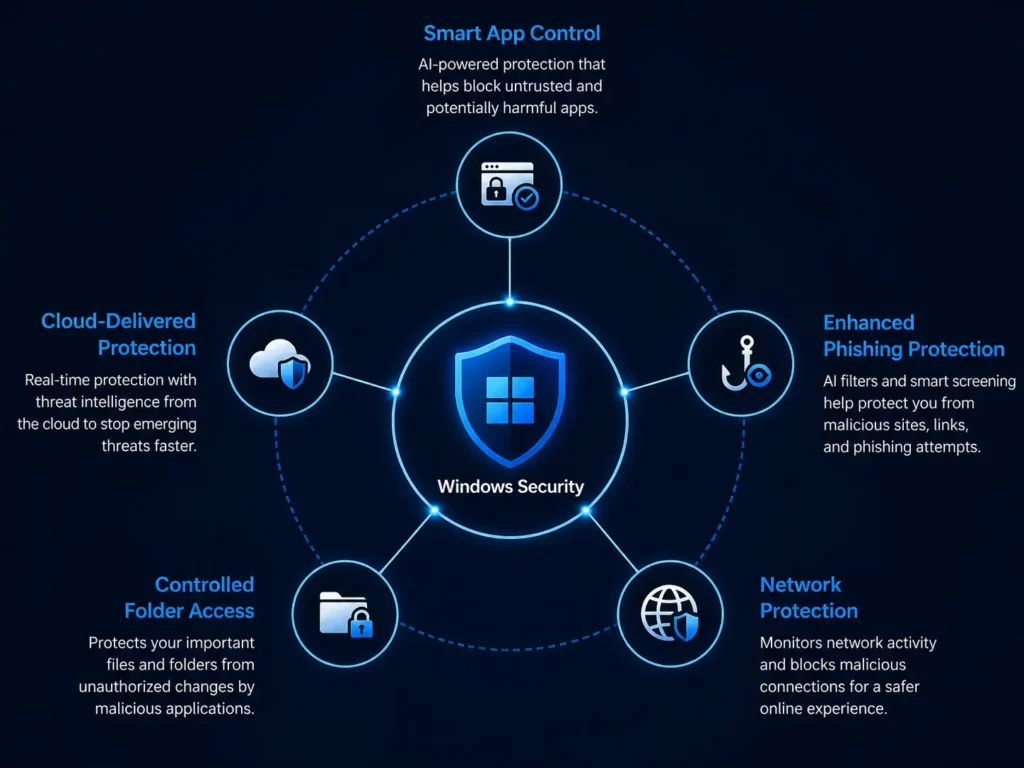
The problem is that several of the most important Microsoft Defender AI features are not switched on by default. Here are the five that matter most.
The 5 Hidden Microsoft Defender AI Features Most Users Never Switch On
1. Smart App Control — AI Vetting for Every Application You Run
Smart App Control is one of the most significant Microsoft Defender AI features added in recent years — and almost nobody knows it exists. According to Microsoft’s official support documentation, Smart App Control leverages AI and cloud-based intelligence to predict the safety of an application before it runs — allowing only apps deemed safe to execute.
Unlike traditional antivirus that scans files for malicious patterns after they arrive, Smart App Control prevents suspicious programs from executing in the first place. It checks applications against Microsoft’s cloud intelligence, code-signing certificates, and AI-powered reputation databases. If an app is unknown and cannot be verified as safe, it is blocked.
How to check: Windows Security → App & browser control → Smart App Control settings. You will see one of three states: On, Evaluation, or Off. Note: This Microsoft Defender AI feature requires a clean Windows 11 installation — it cannot be enabled on an existing Windows 11 upgrade without resetting the device.
2. Cloud-Delivered Protection — Real-Time AI Threat Intelligence
Cloud-delivered protection is the AI engine that connects your device to Microsoft’s global threat intelligence network — one of the largest in the world. When Defender encounters a suspicious file, it can query Microsoft’s cloud servers for an instant verdict using AI models trained on billions of samples. According to Netcrook’s April 2026 Defender update analysis, this dynamic cloud-driven approach is what allows Microsoft Defender AI features to identify and mitigate emerging ransomware, supply chain threats, and zero-day exploits within minutes of their first detection anywhere in Microsoft’s network — before they ever reach a signature database.
How to enable: Windows Security → Virus & threat protection → Manage settings → turn on ‘Cloud-delivered protection’ and ‘Automatic sample submission’. Both should be toggled ON.
3. Enhanced Phishing Protection — AI That Watches Where You Type
Enhanced Phishing Protection is perhaps the most underrated of all Microsoft Defender AI features. When you type your Windows password into any website or application that Defender finds suspicious, it can automatically analyse the content, collect contextual evidence, and alert you in real time — working across all applications and browsers, not just Microsoft Edge.
This Microsoft Defender AI feature also warns when you reuse your Windows password in other contexts — a critical protection given that credential reuse is one of the most common attack vectors in 2026. Most users have never enabled this feature and have no idea it exists.
How to enable: Windows Security → App & browser control → Reputation-based protection settings → Phishing protection → toggle on ‘Warn me about malicious apps and sites’ and ‘Warn me about password reuse’.
4. Controlled Folder Access — Ransomware Blocker Sitting Switched Off
Controlled Folder Access is one of the most powerful Microsoft Defender AI features for protecting against ransomware — and it is turned off by default on every Windows installation. According to Windows News AI’s Defender ransomware analysis, this feature prevents unauthorised applications from modifying files in protected directories — Documents, Pictures, Desktop, and others. When ransomware attempts to encrypt these files, Defender blocks the process and alerts you immediately.
The 2026 microsoft defender AI features implementation includes behavioural analysis that detects ransomware-like activity patterns from previously unknown applications — meaning it catches new variants that have never appeared in any database, based purely on their behaviour of trying to rapidly modify protected files.
How to enable: Windows Security → Virus & threat protection → Ransomware protection → Manage ransomware protection → turn on ‘Controlled folder access’. You can then add additional folders you want protected beyond the defaults.
5. Network Protection — Blocking Malicious Domains Before the Page Loads
Network Protection is the fifth key Microsoft Defender AI feature — a system-wide Microsoft Defender AI feature that monitors all outbound network connections and blocks requests to known malicious domains and IP addresses — including command-and-control servers used by malware to receive instructions and exfiltrate data. Unlike browser-based protection that only works in Edge, Network Protection works across every application on your device.
This is the Defender equivalent of what tools like Proton VPN’s NetShield do at the DNS level — except it is built into Windows at the OS level and costs nothing. It is particularly relevant in 2026 as AI-powered malware increasingly communicates with remote servers to adapt and receive updated attack instructions.
How to enable: Network Protection requires PowerShell to enable. Open PowerShell as Administrator and run: Set-MpPreference -EnableNetworkProtection Enabled. Alternatively, it can be enabled through Group Policy or Microsoft Intune in business environments.
Microsoft Defender AI Features vs Paid Antivirus: An Honest 2026 Comparison
With all five Microsoft Defender AI features properly enabled, how does it compare to paid antivirus tools? Here is an honest breakdown based on what each actually does in 2026:
| MICROSOFT DEFENDER AI FEATURES: FREE vs PAID ANTIVIRUS COMPARISON | ||
| Feature | Microsoft Defender (Free) | Paid Antivirus (e.g. Malwarebytes) |
| Real-time malware protection | ✅ Yes | ✅ Yes |
| AI behavioural analysis | ✅ Yes (cloud-powered) | ✅ Yes (on-device + cloud) |
| Cloud-delivered protection | ✅ Yes — updates in minutes | ✅ Yes |
| Smart App Control (AI app vetting) | ✅ Yes (Windows 11 only) | ❌ Not available |
| Enhanced Phishing Protection | ✅ Yes (requires enabling) | ⚠️ Varies by product |
| Ransomware / Controlled Folder Access | ✅ Yes (requires enabling) | ✅ Yes |
| SmartScreen (reputation-based) | ✅ Yes — system-wide | ⚠️ Browser extension only |
| Network Protection | ✅ Yes (requires enabling) | ✅ Yes |
| Exploit Protection | ✅ Yes | ✅ Yes |
| Zero-day / unknown threat detection | ⚠️ Good — cloud AI dependent | ✅ Strong — behavioural AI |
| Deception technology (canary files) | ❌ No | ⚠️ Some paid tools |
| Multi-device management | ❌ Windows only | ✅ Cross-platform |
| VPN / Identity protection | ❌ No | ⚠️ Some paid suites |
| Cost | ✅ Free — built into Windows | 💰 $30–$100+ per year |
| AV-Test protection score (2026) | ✅ 6/6 — top score | ✅ 6/6 — top performers |
| Note: Several Microsoft Defender AI features require manual enabling in Windows Security settings — they are not fully active by default. See the activation guide below. | ||
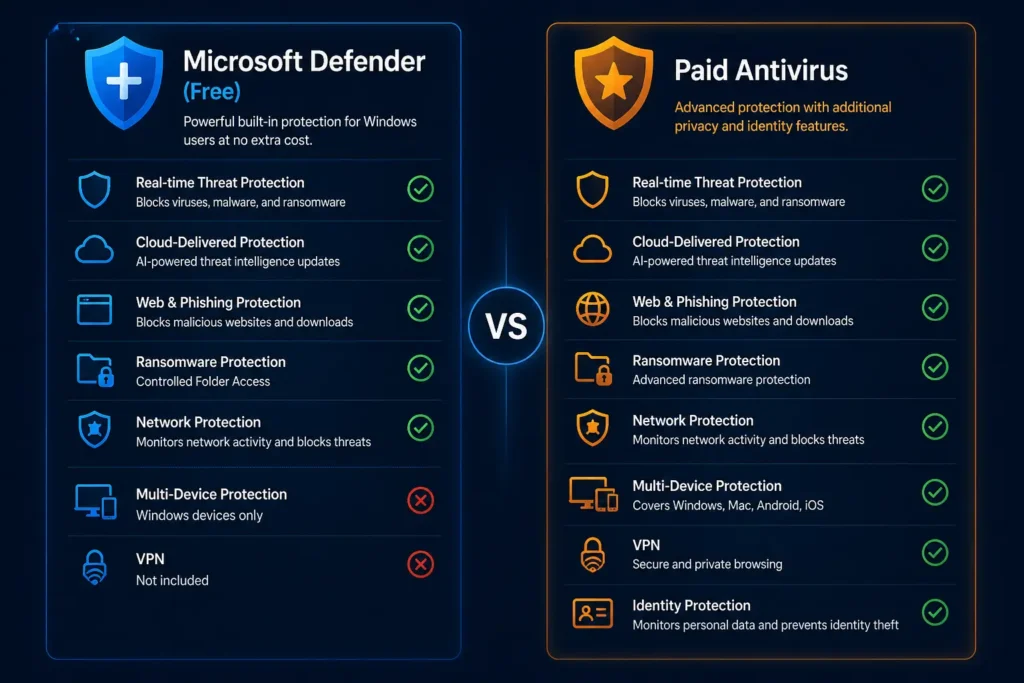
The honest conclusion from this comparison: fully configured Microsoft Defender AI features cover the core threats that most home users face — malware, ransomware, phishing, and zero-day attacks — at a level that matches paid tools in independent testing. The gaps are in areas that typical home users do not need: multi-device management, cross-platform protection, and bundled identity or VPN services.
According to Windows Latest, installing a separate antivirus on top of Defender adds background services, increases RAM and CPU usage, and can sometimes cause conflicts with built-in protections. For most single-device home users in 2026, properly configured Microsoft Defender AI features are the right choice.
How to Fully Activate All Microsoft Defender AI Features — Step by Step Guide
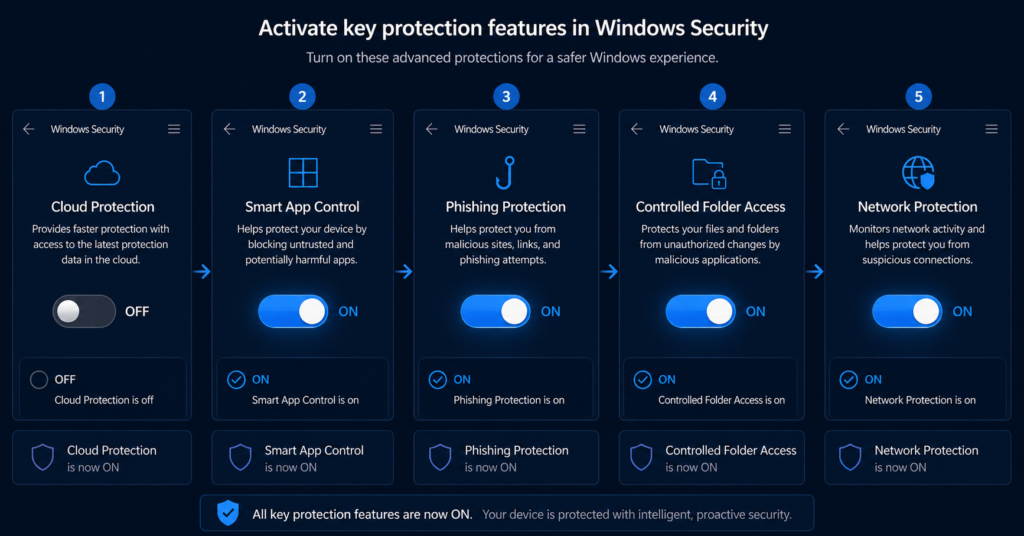
Most users open Windows Security, see the green checkmarks on the main screen, and assume their Microsoft Defender AI features are fully active. They are not. Here is the complete activation sequence that turns on every key Microsoft Defender AI feature:
- Cloud-Delivered Protection + Automatic Sample Submission — Windows Security → Virus & threat protection → Manage settings → toggle both ON. These are the foundation of all Microsoft Defender AI features and must be enabled first.
- Enhanced Phishing Protection — Windows Security → App & browser control → Reputation-based protection settings → Phishing protection → toggle on both ‘Warn me about malicious apps and sites’ and ‘Warn me about password reuse’.
- Controlled Folder Access (Ransomware Protection) — Windows Security → Virus & threat protection → Ransomware protection → Manage ransomware protection → toggle ON. Add any additional folders you want protected.
- Potentially Unwanted App Blocking — Another Microsoft Defender AI feature most users miss. Windows Security → App & browser control → Reputation-based protection settings → toggle on ‘Block apps’ and ‘Block downloads’.
- Network Protection — Open PowerShell as Administrator → run: Set-MpPreference -EnableNetworkProtection Enabled. Confirm with: Get-MpPreference | Select EnableNetworkProtection — should return ‘1’.
- Smart App Control — Windows Security → App & browser control → Smart App Control settings → check current status. If showing ‘Evaluation’, leave it — Defender is learning your app usage patterns before switching to full enforcement.
When Microsoft Defender AI Features Are Not Enough — And What to Add
For most home users on a single Windows device, the fully configured set of Microsoft Defender AI features provides sufficient protection. There are specific scenarios where a supplementary tool adds genuine value:
- You use multiple operating systems — Defender is Windows-only. If you also use macOS, Android, or iOS, a cross-platform paid tool provides consistent protection across all devices from one dashboard.
- You regularly download software from outside the Microsoft Store — Smart App Control is strong but is not available on older Windows 11 installs. If you frequently install software from unknown sources, a tool with sandboxing capabilities adds an additional layer.
- You want behavioural AI that operates independently of the cloud — Defender’s AI capabilities are heavily cloud-dependent. In offline or air-gapped environments, on-device AI detection from tools like Malwarebytes provides a layer Defender cannot match.
- You want second-opinion scanning — Defender is excellent as a primary scanner. Running Malwarebytes Free alongside Defender as a periodic on-demand scanner is a legitimate and widely recommended combination — Defender handles real-time protection, Malwarebytes provides a second-opinion cleanup layer. See our full Malwarebytes free vs premium comparison for details on how to pair both tools correctly.
Verdict: Are the Microsoft Defender AI Features Enough to Replace Paid Antivirus in 2026?
Yes — but only if you activate them. Out of the box, Microsoft Defender AI features are significantly underutilised on most Windows PCs. The cloud protection is on. Everything else is largely waiting to be switched on.
Once these Microsoft Defender AI features are fully configured — cloud protection enabled, phishing protection active, Controlled Folder Access protecting your files, Network Protection blocking malicious domains, and Smart App Control vetting your applications — the full set of Microsoft Defender AI features delivers protection that scored 6/6 in independent testing and matches what most paid antivirus tools provide for a single Windows device.
The case for paid tools remains valid in specific scenarios — multi-device households, macOS users, and people who want on-device AI that does not depend on cloud connectivity. But for the majority of Windows 11 users who have never opened Windows Security settings beyond the main screen, the highest-impact security action they can take costs nothing. It takes fifteen minutes and uses tools already sitting on their device.
For more on how Microsoft Defender AI features fit into a broader defence strategy, read our guide on the 7 AI cyberattacks businesses must prepare for in 2026 — and what tools defend against each one.
Related reading: AI Ransomware Detection: How It Stops Attacks Before Encryption in 2026 — understand how Controlled Folder Access fits into a layered ransomware defence.
FREQUENTLY ASKED QUESTIONS
Q1. Is Microsoft Defender AI good enough in 2026 without any paid antivirus?
For most single-device Windows 11 users, yes — but only with all key features properly enabled. Out of the box, several important Microsoft Defender AI features are switched off. Once you activate cloud-delivered protection, Enhanced Phishing Protection, Controlled Folder Access, and Network Protection, Defender achieves the same 6/6 protection score in independent AV-Test benchmarks as the best paid antivirus products. The main gaps are multi-device management and cross-platform coverage — neither of which most home users need.
Q2. What is Smart App Control and why do most users not have it?
Smart App Control is an AI-powered Microsoft Defender feature that vets every application before it runs — blocking untrusted and malicious software at the execution stage rather than scanning it after the fact. Most users do not have it because it requires a clean Windows 11 installation to enable. It cannot be switched on after an in-place upgrade from Windows 10 or an earlier version of Windows 11 without resetting the device. If your device was set up with a fresh Windows 11 install, check Windows Security → App & browser control → Smart App Control settings.
Q3. How do I enable Controlled Folder Access in Microsoft Defender?
Go to Windows Security → Virus & threat protection → scroll down to Ransomware protection → click ‘Manage ransomware protection’ → toggle on ‘Controlled folder access’. By default it protects your Documents, Pictures, Videos, Music, and Desktop folders. You can add additional folders by clicking ‘Protected folders’. You may need to add exceptions for legitimate applications that Defender incorrectly blocks — this is normal during the initial setup period.
Q4. Should I run Malwarebytes alongside Microsoft Defender?
Yes — this is a widely recommended combination. Use Microsoft Defender as your primary real-time protection with all AI features enabled, and run Malwarebytes Free as a periodic on-demand second-opinion scanner. To make them coexist correctly, go to Malwarebytes settings and disable ‘Register Malwarebytes in the Windows Security Center’ — this prevents Malwarebytes from deactivating Defender’s real-time protection. The two tools were designed to complement each other and do not conflict when configured this way. Read our full Malwarebytes review for the complete setup guide.
SOURCES
1. Windows Latest — Microsoft Defender: Do You Need Third-Party Antivirus in 2026?
2. Windows News AI — Windows 11 Security 2026: Defender, SmartScreen and Ransomware Protection
3. Netcrook — Microsoft Defender Update 2026: AI-Powered Security Intelligence
4. Microsoft Security Blog — AI-Powered Defense for an AI-Accelerated Threat Landscape
5. Microsoft Support — App & Browser Control in Windows Security
6. Electronic Risk — Microsoft Defender 2026: Is It Finally Good Enough?
7. WinCentral — Microsoft Security Report April 2026
8. aisecuritywatch.com — Malwarebytes Free vs Premium 2026
9. aisecuritywatch.com — AI Ransomware Detection 2026
10. aisecuritywatch.com — The 7 Deadly AI Cyberattacks 2026
DISCLAIMER
This article is for educational and informational purposes only. Microsoft Defender is a Microsoft product — this review is editorially independent and not sponsored by Microsoft. Feature availability may vary by Windows version and update status. For full details on our editorial standards, please read our Disclaimer at aisecuritywatch.com/disclaimer.